 Lukas
Every Apple Pay purchase, logged on its own
Set up the shortcut once and you're done: every Apple Pay purchase lands in Lukas without you doing a thing.
How do I set it up?We'll take you to the iOS 27 steps.
How to set it up
Watch the step-by-step video
On iOS 26 or earlier? Install that version’s shortcut.
- 01Import the shortcutTap “Get the shortcut” and add it when the Shortcuts app opens.
- 02Open the shortcut and tap EditOpen the shortcut you just imported and tap Edit.
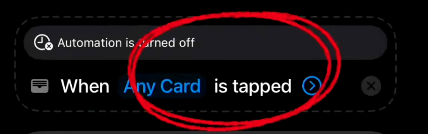
- 03Enable the automationTap the first box (“Automation is turned off”) and enable the automation.
- 04Test it the first timeMake the first payment with your phone unlocked. After that it works on its own, no unlocking needed. The first time, iOS asks Shortcuts for location permission: accept it so the place gets saved.
This shortcut also saves the place where you paid, so you can see on a map where your money goes. You can turn it off under Profile → iOS Shortcuts → "Guardar dónde pagaste".
Get the shortcutOpens in the Shortcuts app on your iPhone · iOS 27
Don't have Lukas yet?
Download it free and turn on Apple Pay detection.
Download on the App Store